Welcome to Part V. Up to this point (from your first API call to the deployed Music Time Machine) you have dealt almost exclusively with text: JSON payloads, URL parameters, and database strings.
But real applications are messy and analog. Professional applications need to handle files: profile images, PDF reports, Excel spreadsheets, and video clips. These aren't text strings; they are binary data.
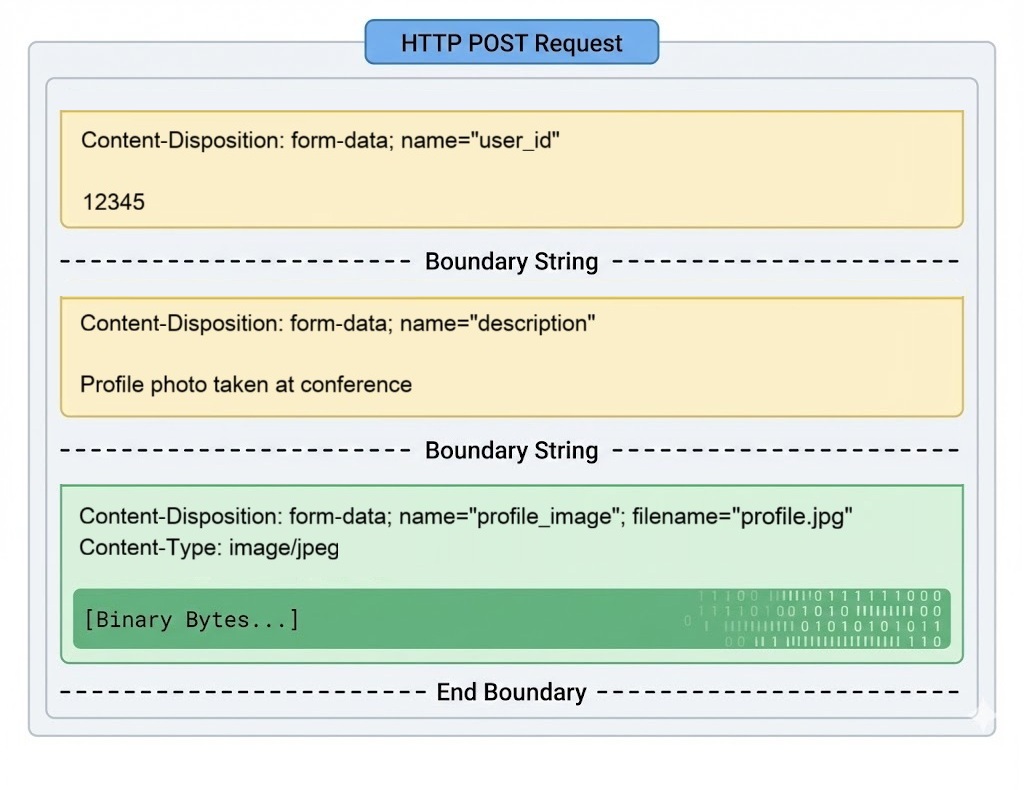
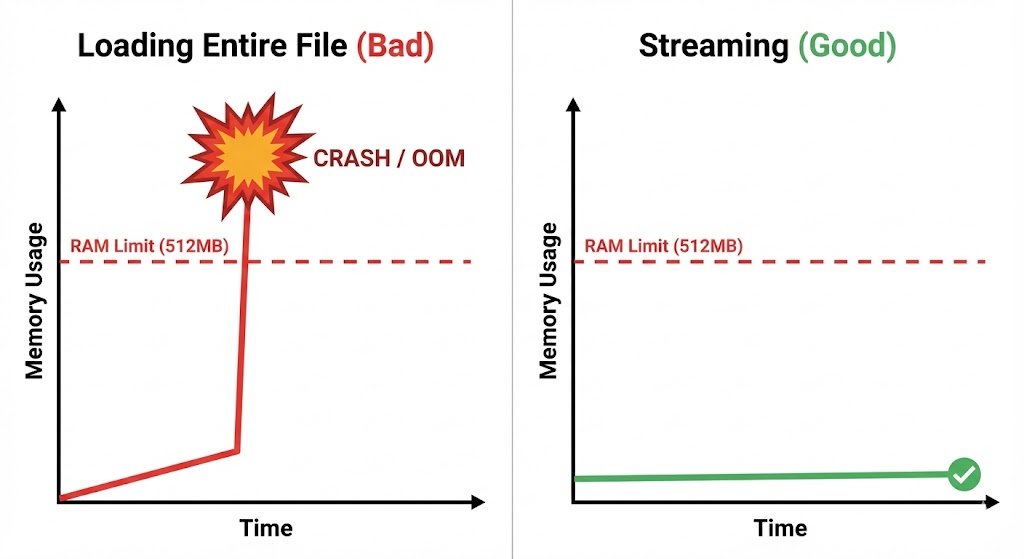
Handling binary data introduces new challenges. You can't just dump an image into a JSON field. You need to manage memory usage (what if the file is 1GB?), handle specific encoding types like multipart/form-data, and provide feedback to users when operations take time.
In this chapter, you will master the art of moving files across the internet. You will move from simple uploads to building a production-grade Receipt Scanner that uploads images, extracts text via OCR, and processes the results. By the end, you'll have the skills to handle any file upload scenario a professional application might throw at you.
Learning Objectives
By the end of this chapter, you'll be able to:
- Explain the difference between text and binary data in HTTP requests.
- Upload files with
multipart/form-datausing therequestslibrary. - Stream large file uploads so they do not exhaust memory.
- Display progress bars to give users feedback during long operations.
- Download and safely save binary content such as images and PDFs.
- Use Document Processing (OCR) APIs to extract text from images.
- Build an end-to-end Receipt Scanner pipeline that turns uploaded images into structured data.
What This Chapter Covers
This chapter guides you through the complete file handling lifecycle. You'll start by understanding the fundamental difference between text and binary data. Then you'll learn basic file uploads with multipart/form-data encoding. Next, you'll master streaming large files to avoid memory issues. You'll practice downloading binary files safely, implement batch processing for efficiency, and finally build a complete Receipt Scanner that integrates OCR APIs.
Understanding Binary Data
Learn the fundamental difference between text and binary data, understand why images and files require special handling, and grasp the 'rb' versus 'r' file mode distinction.
Basic File Uploads
Master multipart/form-data encoding, upload files using the requests library, handle file validation and size limits, and understand Content-Type headers for different file types.
Streaming Large Files
Stream large files in chunks to avoid memory exhaustion, implement progress bars for user feedback during long uploads, and handle network interruptions gracefully.
Downloading Binary Files
Download images, PDFs, and other binary files safely, save them to disk with proper encoding, stream downloads to manage memory, and verify file integrity.
Batch Processing Strategies
Process multiple files efficiently, implement concurrent uploads with threading, handle batch failures gracefully, and optimize for throughput versus reliability trade-offs.
Project: Receipt Scanner
Build an end-to-end Receipt Scanner that uploads images, uses OCR APIs to extract text, parses structured data, and handles real-world file upload challenges.
Chapter Summary
Review key file handling concepts, celebrate what you've built, test your understanding with comprehensive quiz questions, and prepare for advanced topics.
Key strategy: This chapter takes you from simple text-based requests to handling real-world binary data. You'll master file uploads, downloads, streaming, and OCR integration through progressively complex examples culminating in a production-ready Receipt Scanner.
Text vs. Binary: The Byte-Level Difference
To understand why file uploads require special handling, you need to understand how Python reads files. Start with what you already know.
When you send JSON, you are sending text strings:
# Text data - what you've been doing
text_data = {"name": "Alice", "age": 25}

# requests converts this dictionary to a UTF-8 string automatically
response = requests.post("https://httpbin.org/post", json=text_data)
Images and documents are different. They are binary data: raw bytes like 0xFF 0xD8 0xFF 0xE0 (the start of a JPEG). These bytes do not represent text characters.
# WRONG - This corrupts binary files
with open('profile.jpg', 'r') as f:  # Text mode tries to decode bytes
    data = f.read()  # ❌ Decoding error or corrupted data

# CORRECT - Binary mode preserves raw bytes
with open('profile.jpg', 'rb') as f:  # Binary mode reads raw bytes
    data = f.read()  # ✅ Data preserved exactly as-is
    print(f"First 4 bytes: {data[:4]}")  # Shows actual hex values
First 4 bytes: b'\xff\xd8\xff\xe0'
Notice the b prefix? That indicates raw bytes, not text. If you try to open an image in text mode, Python tries to interpret those bytes as UTF-8 characters, fails, and corrupts the data.
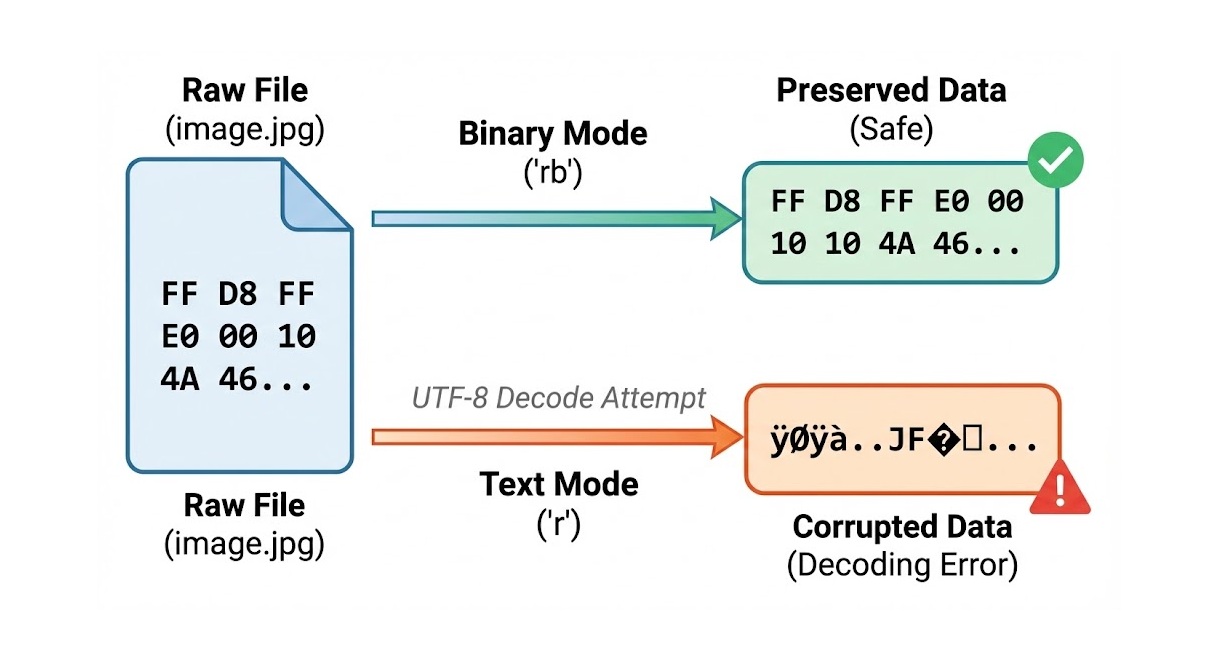
Always use 'rb' (read binary) mode when opening non-text files.
open('image.jpg', 'r') = Corruption (Python tries to decode bytes to text).
open('image.jpg', 'rb') = Safe (Python reads raw bytes).
This is one of those rules you memorize now and thank yourself for later when you debug why images look corrupted after upload.
When you run f.read() on a 1GB video file, Python attempts to load all 1GB into RAM. In production environments (like the Railway containers you used in Chapter 20), memory is limited. Reading large files all at once is the fastest way to crash your application.
Later in this chapter, we will use Streaming to handle large files in small chunks, keeping memory usage low. If that sounds complex, don't worry. You'll see it's actually a straightforward pattern that makes a huge difference in production.